The allergen matrix, made from your menu
Every item you sell is already in Zeta POS. The Allergens screen turns that menu into a matrix you fill in once, keep reviewed, and export as a print-ready PDF booklet for the kitchen, the counter and the staff room.
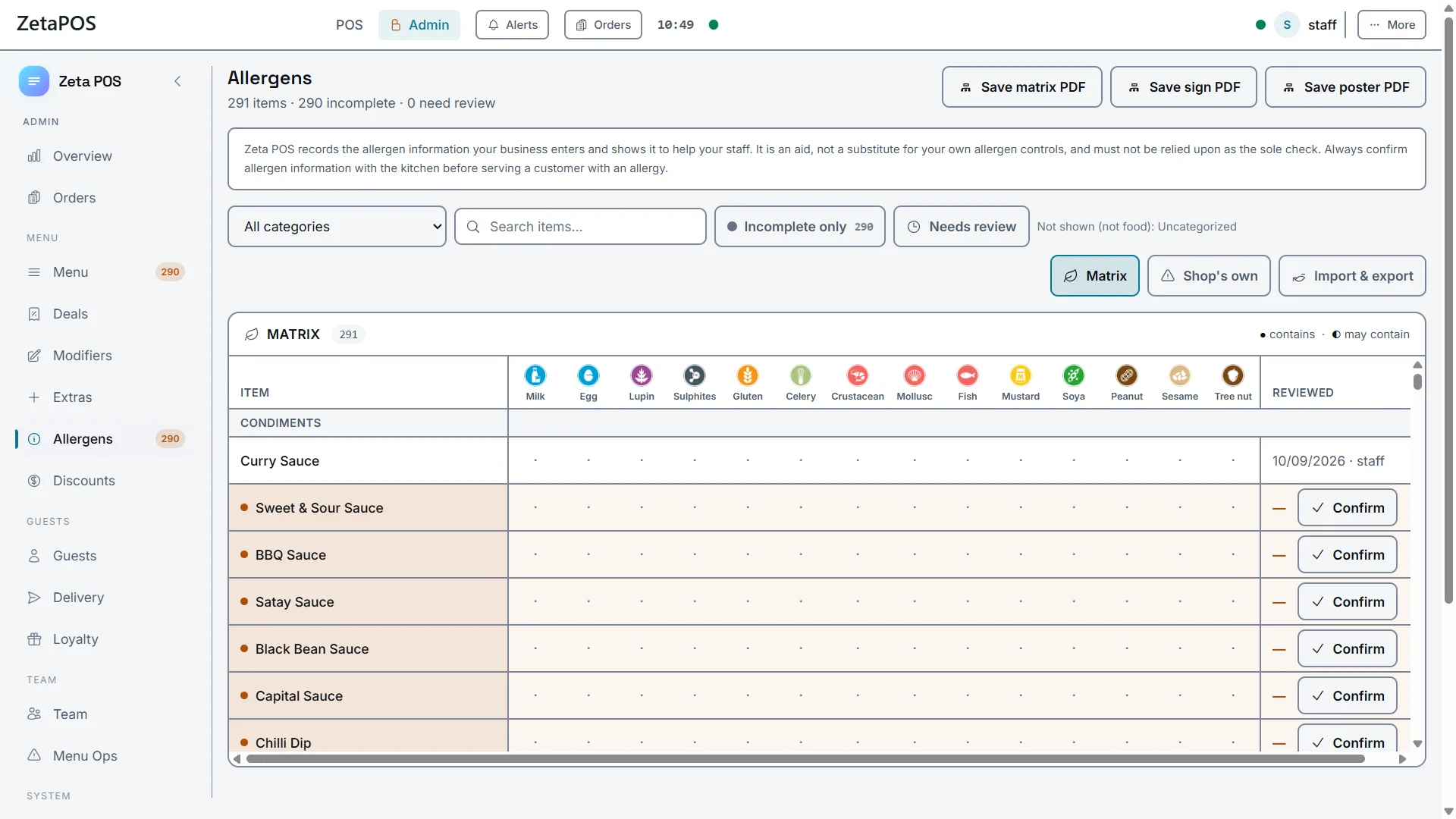
The Allergens screen in Zeta POS Admin. Matrix view shown.
How it works
Four steps, then you only revisit it when the menu changes.
Open Allergens
Your menu categories and items are already there. Uncategorised and non-food items stay out of the way.
Mark contains and may contain
Tap a cell to cycle it: ● contains, ◐ may contain, blank for neither. Incomplete only narrows the grid to what is still unmarked.
Confirm with the kitchen
Confirming stamps the item with the date and who checked it — "Reviewed 10 Sep by Dave" — so the next person can see what was agreed and when.
Export and print
Save the matrix, sign or poster as a PDF. They land in Downloads with a Show in folder button, so you print them from wherever you like.
Three PDFs, one screen
Each export reads the same data, so nothing goes out of step.
Matrix PDF
Every dish against all fourteen columns, in the FSA's layout: teal header band, FOOD MENU column, one page per menu category. A4 landscape.
Sign PDF
The FSA counter sign, its wording word for word: "Food Allergy or Intolerance? … please speak to the staff before you order." Your shop name at the foot.


Poster PDF
"The 14 allergens" — the icons two rows of seven, at least 25 mm each, with their full official names. For the staff room wall.
The 14 allergens
The matrix columns, in the Food Standards Agency's own print order — and with the FSA's own official icons, the ones already on the posters in every other kitchen. Nothing is redrawn.
MilkEggsLupinSulphur dioxide & sulphitesCereals containing glutenCeleryCrustaceansMolluscsFishMustardSoybeansPeanutsSesameTree nutsPrinting the booklet
The matrix PDF is laid out to survive a kitchen. A few things that make it last longer.
One category per page
The matrix breaks between menu categories, so every page is a section of your menu. A long category carries on overleaf with the header and the category name repeated.
Print at full size
The FSA asks for its icons at no less than 0.6 cm across. Print at 100% rather than scale-to-fit and the symbols stay readable from across a counter.
Mono printer? Switch the icons
There is a black-and-white icon set for mono printers — the FSA’s own artwork, not a washed-out greyscale of the colour version.
Laminate or sleeve it
One copy in a wipeable sleeve by the till, one in the kitchen. Punch and ring-bind rather than staple, so a single page can be swapped when one dish changes.
Reprint when the menu changes
Every export carries the date and time it was produced, in the header and in the filename, so you can tell at a glance whether the copy on the wall is the current one.
Questions
Do I have to enter every item by hand?
No. The items come from your menu, so you only mark the allergens — and you do not have to do it at the till. Import & export hands you one Excel workbook with a tick sheet of your whole menu, a row per dish and a column per allergen. Tick it wherever suits, hand it straight back as .xlsx or .csv, and it imports in one go.
What is the difference between contains and may contain?
Contains is an ingredient in the recipe. May contain covers cross-contamination risk — a shared fryer, say. They stay separate everywhere: ● and ◐ on screen, ✓ and MC on the printed matrix.
What does confirming an item do?
It records the date and the member of staff who checked it. Needs review then collects anything that has never been confirmed, was confirmed longer ago than your review window, or has had an ingredient change since it was last signed off.
Can I add allergens that are not on the list of 14?
Shop’s own lets you record extra items or ingredients specific to your business alongside the statutory 14.
Does the PDF update if I change an item?
The PDF is a snapshot of the moment you saved it. Change an item, save a fresh export, and reprint the affected page.
Allergen paperwork, already handled.
It comes with every plan. Try Zeta free for 30 days — or ring us and talk it through with a human.